Welcome to PBBans
PBBans Hub Streaming Guide Revision 1.60
French Translation |
German Translation
NOTE 1: PBUcon is property of EvenBalance Inc.
NOTE 2: You DO NOT have to download the pbucon binary
The PBBans Hub is ideal for streaming public servers and is quite easy to set up, even for inexperienced server admins.
If you want to find out exactly what the PBBans Hub is, please take the time to read this:
click me
The current UCON profiles used by PBBans are:
pb_sv_uconadd 1 38.111.114.231 pbbhub4-1 pbbanshub
pb_sv_uconadd 1 38.111.114.249 pbbhub4-2 pbbanshub
The PBBans Hub utilizes the PBUCON facility that is part of PunkBuster, but it must be stressed that
the only Rcon commands it uses are hardcoded into the PBBans Hub and Rep and
no admin can send any other rcon commands to your server via the Hub, please take the time to read this:
click me
The only allowed pbucon types are 1 (if you want live bans and other planned enhanced features) or 0 ( if you want to disable live bans ).
If we find servers that are using 2 or 3 ( this causes the actual game logs to be streamed ) we will consider this as an attempt to overload the hub, your server will be immediately removed and your account suspended for one month!
Now you are fully aware of what the PBBans Hub is, you are now ready to begin the setup phase.
Table of Contents
Disclaimer
Setting your pbucon to profile 1 does allow rcon commands to be sent to your server. This is how the PBBans Hub sends live bans to your server. No admin has any control of this feature and only the web services and systems of PBBans such as the hub and rep have access to this.
The only commands that are sent to a server using profile 1 are PB related commands such as ban and unban commands, greeting messages (if enabled), pb ver (heartbeat), and pb update. Our system will not modify any settings on your server at any time.
Should you not want any commands being sent to your server please use profile 0 like the below example:
pb_sv_uconadd 0 38.111.114.231 pbbhub4-1 pbbanshub
pb_sv_uconadd 0 38.111.114.249 pbbhub4-2 pbbanshub
Using profile 0 will prevent any PB command from being sent to your server. Live banning, ban enforcements and other enhanced features will be disabled. (profile 1 is the default profile for PBBans Hub streaming)
Using Automated Streaming Setup Tool
The PBBans Automated Streaming Setup tool is the easiest method to get your server streaming. It's for users that have limited access to the PB folder or those who are unsure how edit PB configurations on the server.
This java based application is client side only and no data is stored on or sent to the PBBans website
For more information on applet security please visit
Sun Java
- Visit our Automated Streaming Setup page. You will need Java installed.
- Enter your server IP, Port and RCON password in the correct boxes. 1
- Press Perform Setup and wait for it to complete. It will say [MSG] No error occurred during setup. Server should be ready to stream if completed correctly
- Add your server to your account located here 1
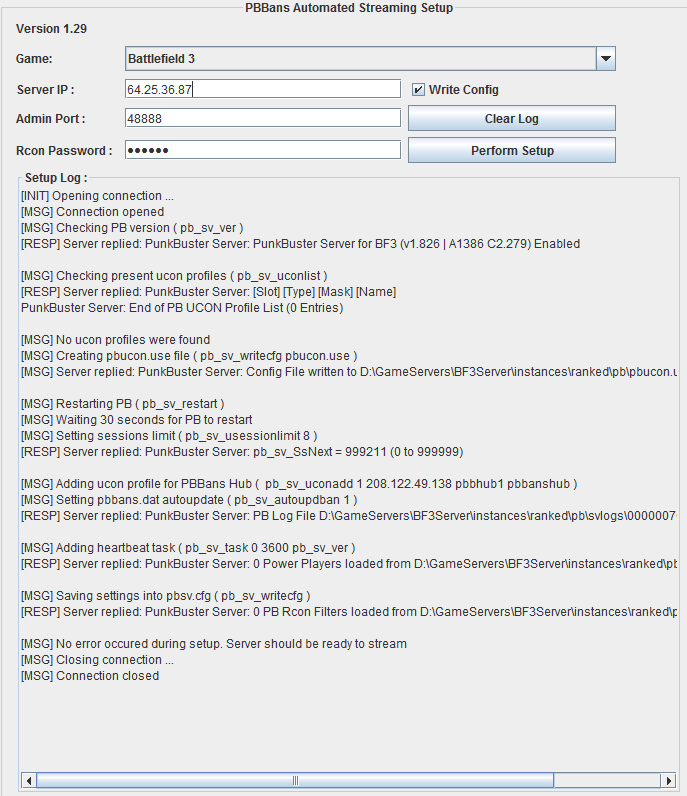 1
1 Some games use separate ports for RCON such as Battlefield. You must use the RCON port to setup the server however you must use the game port when adding to PBBans. For example, Battlefield Bad Company 2 uses a default game port of 19567 while it uses a default RCON port of 48888. In this case you would use 48888 for our Automated Streaming Setup tool but use 19567 when adding your server to your account. If you use the RCON port to add a server on PBBans it will not stream.
NOTE:
If you have uploaded a custom PB config file (pbsv.cfg) and do not wish for PB to overwrite it, uncheck the Write Config checkbox before pressing Perform Setup. This is useful to troubleshoot streaming without committing any changes.
If your server will not stream please refer to the
Troubleshooting section at the end of this guide.
Setup using FTP
Uploading the sample
pbucon.use and
pbsv.cfg files are the easiest way to get your server streaming. The following are the basic steps to take when setting up a server to stream.
- Download the pb_cfgs.zip file from our downloads section file. 1
- Upload via FTP the 2 files pbucon.use and pbsv.cfg)
- Restart PB (pb_sv_restart)
- Add your server to your account located here
1 If you wish to disable "live banning" and other planned enhanced Hub features
pb_sv_uconadd 0 38.111.114.231 pbbhub4-1 pbbanshub should be used (just open the pbsv.cfg in any text editor)
To verify that all is working , after restarting PB, type
pb_sv_uconlist via rcon, the server should give the following response:
PunkBuster Client: [Slot] [Type] [Mask] [Name]
PunkBuster Client: 1 1 38.111.114.231 pbbhub4-1
PunkBuster Client: 2 1 38.111.114.249 pbbhub4-2
PunkBuster Client: End of PB UCON Profile List (1 Entry)
NOTE:
If your server is empty for a long time, it can be shown as not streaming.
If this happens verify that the line
pb_sv_task 0 3600 pb_sv_ver exists in your
pbsv.cfg file.
If your server will not stream please refer to the
Troubleshooting section at the end of this guide.
Setup using RCON
This section is for admins that do not have access to their servers FTP or when the
FTP method fails.
The following are the
commands that need to be send to a server. Send them in the order they appear. Each game is different (BF2 [In-Game]: /rcon exec
, AAO: /admin ). There are more detailed guides for these games later in this guide.
The following are the commands you need
pb_sv_writecfg pbucon.use
pb_sv_restart
Wait for PB to restart (approximately 10-30 seconds)
pb_sv_usessionlimit 10
pb_sv_uconadd 1 38.111.114.231 pbbhub4-1 pbbanshub
pb_sv_uconadd 1 38.111.114.249 pbbhub4-2 pbbanshub
pb_sv_task 0 3600 pb_sv_ver
pb_sv_task 0 86400 pb_sv_update
pb_sv_AutoUpdBan 1
pb_sv_writecfg
To verify that UCON is enabled, type pb_sv_uconlist, the server should give the following response:
PunkBuster Client: [Slot] [Type] [Mask] [Name]
PunkBuster Client: 1 1 38.111.114.231 pbbhub4-1
PunkBuster Client: 2 1 38.111.114.249 pbbhub4-2
PunkBuster Client: End of PB UCON Profile List (1 Entry)
Once complete, add your server info to your account located here
NOTE: If your server is empty for a long time, it can be shown as non streaming. If this happens make sure you sent the pb_sv_task 0 3600 pb_sv_ver command.
If your server will not stream please refer to the Troubleshooting section at the end of this guide.
Using HLSW for RCON
Start by getting the latest version of HLSW (We used 1.2.0.1 Beta for this tutorial) from
www.hlsw.net or
www.hlsw.org.
Once installed start HLSW and if asked for a username and password just click the Offline Button. HLSW has RCON features that work with most games however each game is different and may not work in all.
The main layout of HLSW should look like the figure below:
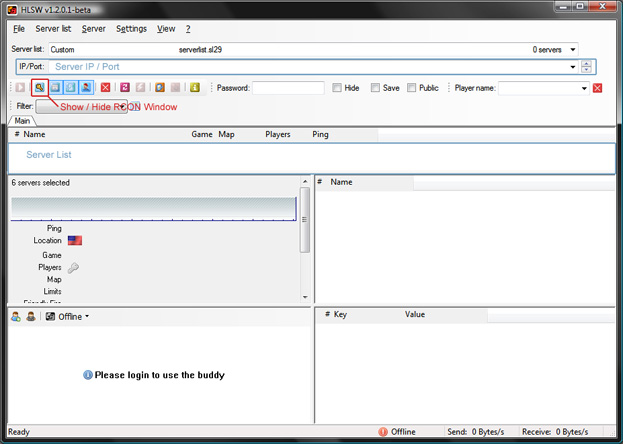
Start off by entering your server ip and port in the
IP / Port box (ex 192.168.1.50:28960) if entered correctly and your server is online the result should look like the figure below. Please note that HLSW will automatically add a server to the list if the server is online and can be queried. Also if you want to add a Battlefield server you must include the gamespy port (ex 192.168.1.50:16567:29900)
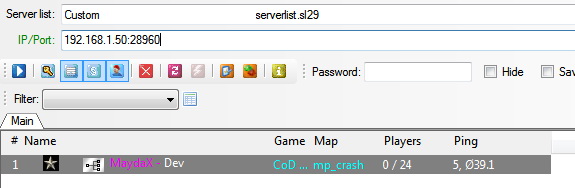
Now that your server is listed in HLSW you can now setup your RCON password. To do this you must Show the RCON panel by pressing the "Toggle RCON Section" button (The blue button with the key icon).
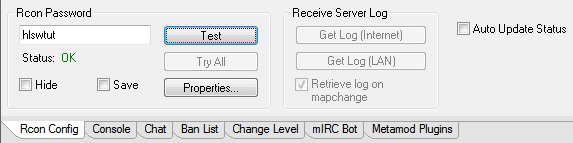
Enter your password into the box as shown in the figure above followed by pressing the
Test button. If everything works the Status will say OK. Check the
Save box to save your RCON password for future use. Now click on the console tab.

Now you can enter RCON commands to setup streaming with PBBans. Just enter each command followed by pressing Enter or by clicking the Send button as seen in the figure above.
Enter the following
commands into HLSW.
pb_sv_writecfg pbucon.use
pb_sv_restart
Wait for PB to restart (approximately 10-30 seconds)
pb_sv_usessionlimit 10
pb_sv_uconadd 1 38.111.114.231 pbbhub4-1 pbbanshub
pb_sv_uconadd 1 38.111.114.249 pbbhub4-2 pbbanshub
pb_sv_task 0 3600 pb_sv_ver
pb_sv_task 0 86400 pb_sv_update
pb_sv_AutoUpdBan 1
pb_sv_writecfg
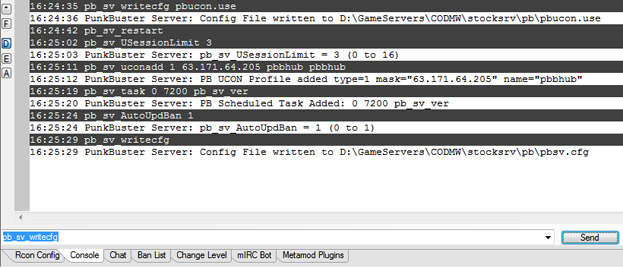
For a list of supported games go to
HLSW Wiki
If your server will not stream please refer to the
Troubleshooting section at the end of this guide.
Using WebAdmin for Red Orchestra 2
The Red Orchestra 2 WebAdmin allows you to send command using the Management Console as shown below:
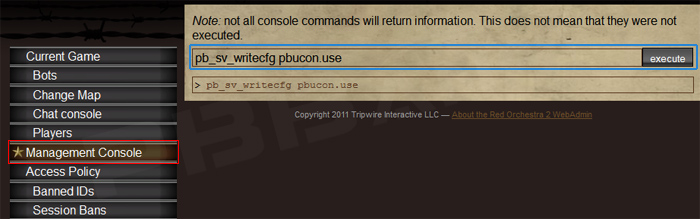
Issue the following commands followed by the Execute button. The results are not returned to the WebAdmin tool.
pb_sv_writecfg pbucon.use
pb_sv_restart
Wait for PB to restart (approximately 10-30 seconds)
pb_sv_usessionlimit 10
pb_sv_uconadd 1 38.111.114.231 pbbhub4-1 pbbanshub
pb_sv_uconadd 1 38.111.114.249 pbbhub4-2 pbbanshub
pb_sv_task 0 3600 pb_sv_ver
pb_sv_task 0 86400 pb_sv_update
pb_sv_AutoUpdBan 1
pb_sv_writecfg
NOTE 1: If your server is empty for a long time, it can be shown as non streaming. If this happens make sure you sent the
pb_sv_task 0 3600 pb_sv_ver command.
If your server will not stream please refer to the
Troubleshooting section at the end of this guide.
Using BF2CC or 2142CC
For Battlefield 2 and Battlefield 2142 servers please try the
FTP Guide first if you have file access to the PB folder. If that does not work or you do not have file access please continue reading.
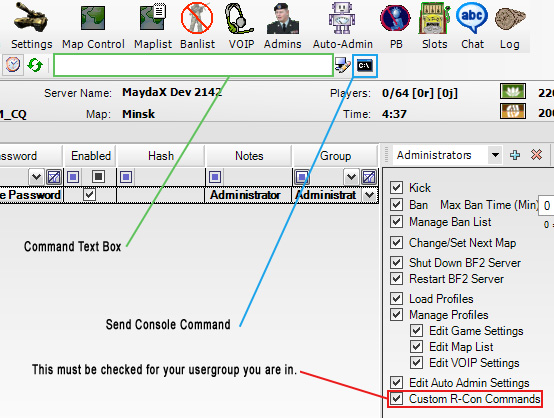
In the
Command Text Box send the following commands one at a time while pressing the
Send Console Command icon (The black c:\ button)
pb_sv_writecfg pbucon.use
pb_sv_restart
Wait for PB to restart (approximately 10-30 seconds)
pb_sv_usessionlimit 10
pb_sv_uconadd 1 38.111.114.231 pbbhub4-1 pbbanshub
pb_sv_uconadd 1 38.111.114.249 pbbhub4-2 pbbanshub
pb_sv_task 0 3600 pb_sv_ver
pb_sv_task 0 86400 pb_sv_update
pb_sv_AutoUpdBan 1
pb_sv_writecfg
All entered commands will appear in the log window as shown below.
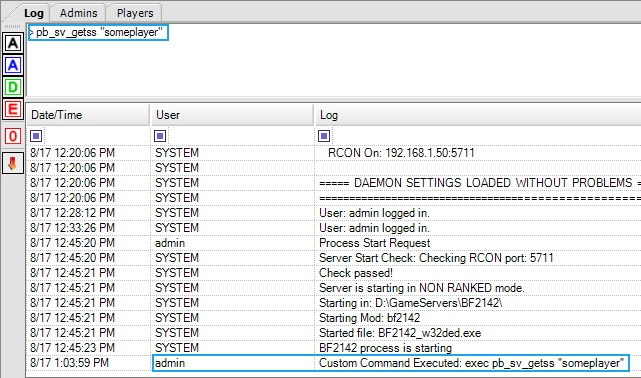 NOTE 1:
 If your server is empty for a long time, it can be shown as non streaming. If this happens make sure you sent the
pb_sv_task 0 3600 pb_sv_ver command.
If your server will not stream please refer to the
Troubleshooting section at the end of this guide.
Setup for BF3 / BC2 / MoH using Console RCON
For Battlefield 3, Bad Company 2 and Medal of Honor servers please try our
Automated Streaming Setup tool first. If that does not work please continue reading.
Please note that all RCON commands in Battlefield 3, Bad Company 2 and Medal of Honor are CaSe SeNsItIvE.
Login to your RCON command console. To view the results of sent PB commands you must enable server events by sending "eventsEnabled true" first (admin.eventsEnabled for BF3).
Type the following commands:
punkBuster.pb_sv_command "pb_sv_writecfg pbucon.use"
punkBuster.pb_sv_command pb_sv_restart
Wait for PB to restart (approximately 10-30 seconds)
punkBuster.pb_sv_command "pb_sv_usessionlimit 10"
punkBuster.pb_sv_command "pb_sv_uconadd 1 38.111.114.231 pbbhub4-1 pbbanshub"
punkBuster.pb_sv_command "pb_sv_uconadd 1 38.111.114.249 pbbhub4-2 pbbanshub"
punkBuster.pb_sv_command "pb_sv_task 0 3600 pb_sv_ver"
punkBuster.pb_sv_command "pb_sv_task 0 86400 pb_sv_update"
punkBuster.pb_sv_command "pb_sv_AutoUpdBan 1"
punkBuster.pb_sv_command pb_sv_writecfg
To verify that all is working, enable server events (Shown above) and type
punkBuster.pb_sv_command pb_sv_uconlist the server should give the following response:
punkBuster.onMessage PunkBuster Server: [Slot] [Type] [Mask] [Name]
punkBuster.onMessage PunkBuster Server: 1 1 38.111.114.231 pbbhub4-1
punkBuster.onMessage PunkBuster Server: 1 1 38.111.114.249 pbbhub4-2
punkBuster.onMessage PunkBuster Server: End of PB UCON Profile List (1 Entry)
Once complete, add your server info to your account located
here
If your server will not stream please refer to the
Troubleshooting section at the end of this guide.
Using ProCon or BC2Guardian
This section is for using the RCON tools called ProCon and BC2Guardian. ProCon can be found
here and BC2Guardian can be found
here. ProCon 1.1.0.0 Beta with BF3 support can be found
here
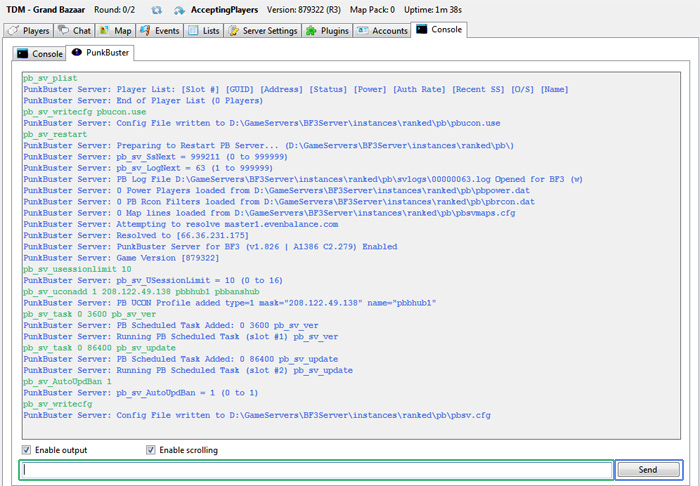
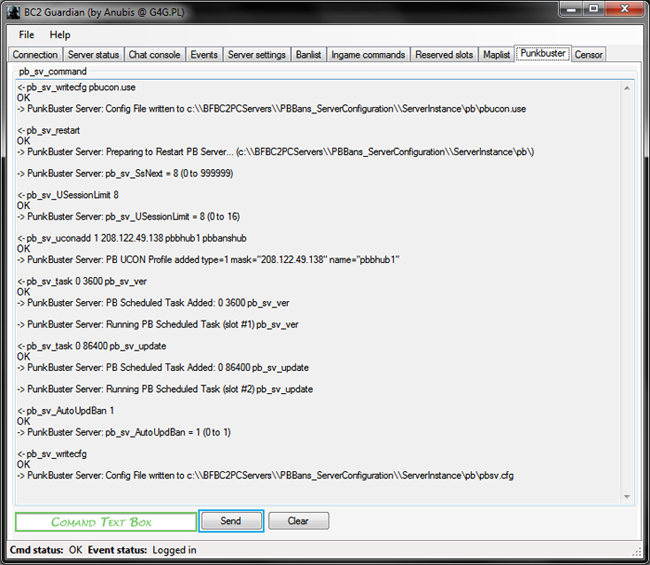
In the
Command Text Box send the following commands one at a time while pressing the
Send button
pb_sv_writecfg pbucon.use
pb_sv_restart
Wait for PB to restart (approximately 10-30 seconds)
pb_sv_usessionlimit 10
pb_sv_uconadd 1 38.111.114.231 pbbhub4-1 pbbanshub
pb_sv_uconadd 1 38.111.114.249 pbbhub4-2 pbbanshub
pb_sv_task 0 3600 pb_sv_ver
pb_sv_task 0 86400 pb_sv_update
pb_sv_AutoUpdBan 1
pb_sv_writecfg
All entered commands will appear in the text box as shown above.
If your server is not streaming and is shown as Not Streaming in our MSi, goto the PunkBuster tab of ProCon or BC2Guardian. Check to see if there are actually UCON messages being displayed from the server such as "Header Mismatch". If there are no UCON messages at all then there is a high chance you have not entered the correct IP address on PBBans. So long as the IP info is correct you should see some type of UCON error messages.
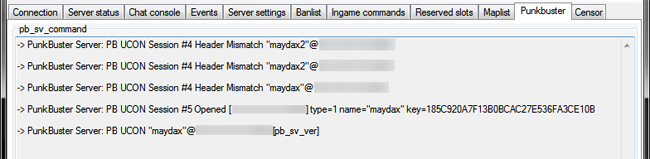
The best way to check if the server IP you have is correct is to enable client logging. A tutorial on how to enable this and how to find your server ip can be found
here
NOTE 1: If your server is empty for a long time, it can be shown as non streaming. If this happens make sure you sent the
pb_sv_task 0 3600 pb_sv_ver command.
If your server will not stream please refer to the
Troubleshooting section at the end of this guide.
Using PB Webtool
The PunkBuster Webtool provides the means to remotely administer game servers from any connected computer using a web browser.
By following the
FTP Guide first the
pbsv.cfg should already be in your servers PB folder and will contain a section for PB Webtool.
Step 1. Edit your
pbsv.cfg file located on the server's PB folder.
Step 2. Edit the following settings.
pb_sv_HttpAddr IP of your server // IP only
pb_sv_HttpPort Port of your server // Port only
pb_sv_HttpKey your secret password
Sample:
pb_sv_HttpAddr 192.168.1.50
pb_sv_HttpPort 28960
pb_sv_HttpKey "mypass"
Step 3. Save changes and and restart your game server
Step 4. In a web browser type
http://server IP:Port in the address bar.
Sample:
http://192.168.1.50:28960
Step 5. Enter your secret password that you set above (
pb_sv_HttpKey) in the webkey window then press Command Screen
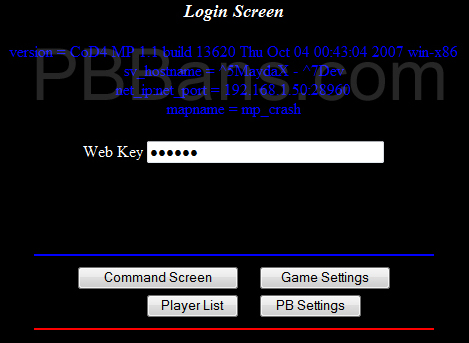 Step 6.
 Now you can enter pb commands in the Command Console box and pressing To Console-> to send:
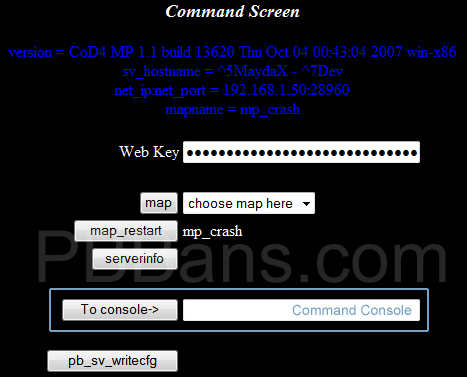
When you send a command a results window will display and should look like the figure below (Some games will not display results):
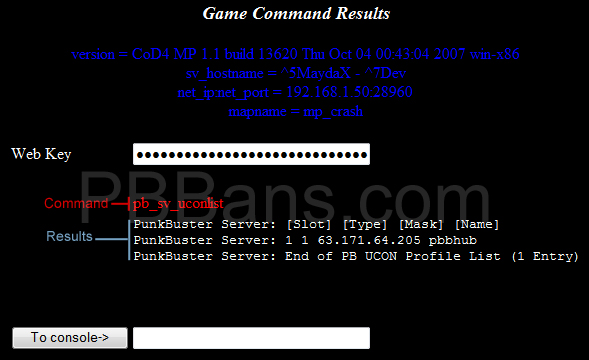 NOTE:
NOTE: If you keep getting a message about a wrong web key message and you're using the Konqueror or Opera web browser, try using FireFox or Internet Explorer.
The PB Webtool Interface is very useful in games such as F.E.A.R., Americas Army, and Crysis. You can use it as a remote console so it's worth the time spent to set it up
If your server is not streaming send the following commands:
pb_sv_writecfg pbucon.use
pb_sv_restart
Often game panels don't allow PB to see a pbucon.use file when uploaded by you.
Setup using ClanForge
The following will guide you through using the ClanForge control panel to setup streaming.
First login to clanforge then click the
Servers tab
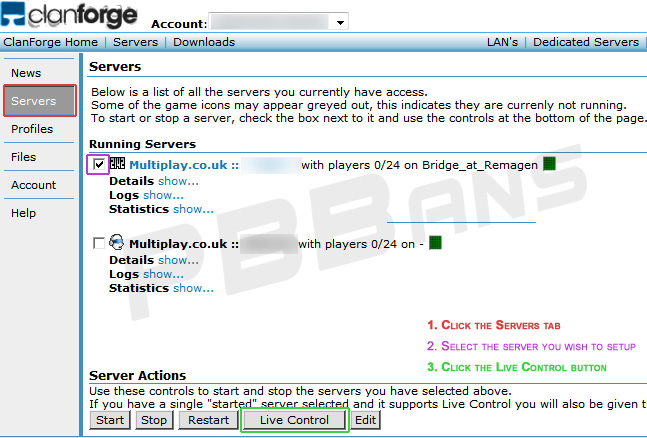 Select
 the server you wish to setup then press the
Live Control button
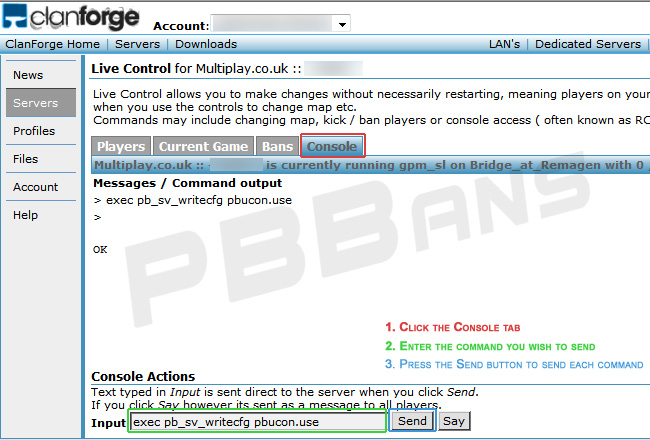
Click the
Console tab and use the
Input box at the bottom of the page to enter the command you wish to send followed by pressing the
Send button.
Send the following commands using the above method:
pb_sv_writecfg pbucon.use
pb_sv_restart
Wait for PB to restart (approximately 10-30 seconds)
pb_sv_usessionlimit 10
pb_sv_uconadd 1 38.111.114.231 pbbhub4-1 pbbanshub
pb_sv_uconadd 1 38.111.114.249 pbbhub4-2 pbbanshub
pb_sv_task 0 3600 pb_sv_ver
pb_sv_task 0 86400 pb_sv_update
pb_sv_AutoUpdBan 1
pb_sv_writecfg
Each game varies such as BF2 / BF2142 that require you have exec in front of the PB command like in the example below
exec pb_sv_writecfg pbucon.use
exec pb_sv_restart
Wait for PB to restart (approximately 10-30 seconds)
exec pb_sv_usessionlimit 10
exec pb_sv_uconadd 1 38.111.114.231 pbbhub4-1 pbbanshub
exec pb_sv_uconadd 1 38.111.114.249 pbbhub4-2 pbbanshub
exec pb_sv_task 0 3600 pb_sv_ver
exec pb_sv_task 0 86400 pb_sv_update
exec pb_sv_AutoUpdBan 1
exec pb_sv_writecfg
Setup for AAO Servers
For Americas Army servers please try the
FTP Guide first. If that does not work please continue reading.
Connect as admin to your server and type the following commands:
admin pb_sv_writecfg pbucon.use
admin pb_sv_restart
Wait for PB to restart (approximately 10-30 seconds)
admin pb_sv_usessionlimit 10
admin pb_sv_uconadd 1 38.111.114.231 pbbhub4-1 pbbanshub
admin pb_sv_uconadd 1 38.111.114.249 pbbhub4-2 pbbanshub
admin pb_sv_task 0 3600 pb_sv_ver
pb_sv_task 0 86400 pb_sv_update
admin pb_sv_AutoUpdBan 1
admin pb_sv_writecfg
To verify that all is working ,type
admin pb_sv_uconlist the server should give the following response:
PunkBuster Client: [Slot] [Type] [Mask] [Name]
PunkBuster Client: 1 1 38.111.114.231 pbbhub4-1
PunkBuster Client: 2 1 38.111.114.249 pbbhub4-2
PunkBuster Client: End of PB UCON Profile List (1 Entry)
Once complete, add your server info to your account located
here
If your server will not stream please refer to the
Troubleshooting section at the end of this guide.
Troubleshooting
If you have followed one of the above procedures and you failed to get the proper server response to the
pb_sv_uconlist command, please use the following checks to verify all is correct:
There are two things you should check first before continuing:
- Make sure PunkBuster is enabled on the server.
- Make sure the Server IP and Port at PBBans is correct.
If you cannot see the server console the following will be logged to the pb/svlogs directory. The latest is commonly the highest number (ex pb000001.log)
Problem: Server will not stream.
- Check The version of PB that is running on the server by typing
pb_sv_ver via RCON. The server version
MUST be at least 1.225.
PunkBuster Server v1.265 | A1381 C1.289) Enabled
Issue the command
pb_sv_update if your server is outdated. Contact your GSP should this fail.
- Check that the file
pbucon.use is in your PB folder. If it's not found by PB the following message will appear in the logs:
PB UCON Cannot be configured without presence of 'pbucon.use' file in 'pb' homepath
Issue the command
pb_sv_writecfg pbucon.use and restart PB if it's not found.
- Check that the server ip and port matches the one you entered in the server manager at PBBans.
- Check that your pbsv.cfg does not contain these (or similar) lines at the end of your pbsv.cfg:
;PB UCON Settings / Lists
pb_sv_usessionlimit 0
pb_sv_ucontimeout 300
pb_sv_uconempty
pb_sv_uconignoreempty
It should look like the following:
pb_sv_USessionLimit 10
pb_sv_ucontimeout 300
pb_sv_uconempty
pb_sv_uconignoreempty
pb_sv_uconadd 1 "38.111.114.231" "pbbhub4-1" "pbbanshub"
pb_sv_uconadd 1 "38.111.114.249" "pbbhub4-2" "pbbanshub"
For particularly stubborn servers that refuse to stream a working quick fix can be tried.
pb_sv_update
Wait for PB to update (approximately 20 seconds to 5 minutes)
pb_sv_writecfg pbucon.use
pb_sv_restart
Wait for PB to restart (approximately 10-30 seconds)
pb_sv_usessionlimit 10
pb_sv_uconadd 1 38.111.114.231 pbbhub4-1 pbbanshub
pb_sv_uconadd 1 38.111.114.249 pbbhub4-2 pbbanshub
pb_sv_task 0 3600 pb_sv_ver
pb_sv_task 0 86400 pb_sv_update
pb_sv_AutoUpdBan 1
pb_sv_writecfg
As long as your server is running the latest version of PB, streaming via the PBBans Hub requires 2 files in your PB folder (pbucon.use and pbsv.cfg). Nothing else is required for PBBans Hub streaming and it will run quite happily alongside the Rep method of streaming or any existing streaming if you use another anti-cheat site.
Insomnia 365 Users:
Users of the Cortex game panel will have to issue the pb_sv_writecfg pbucon.use through the server RCON as PB will not see the pbucon.use file uploaded via cortex.
Problem: Bans are not saving.
- Check that the setting pb_sv_autoupdban 1 is present in your pbsv.cfg file and has a value of 1
Hub Flags
The PBBans Hub uses a permissions system called Hub Flags. This is used to customize Hub features for servers connected to the Hub.
These flags are broken down to three categories: Log Forwarding, League Settings, and PBBans Options.
| Ban Options |
| Enforce MBi Bans |
The Hub will check guids of the connecting players against the MBI. If a match is found, it issues a ban command. If your co-admin empties your banlist, a caught cheater will not be able to join the server. This may also help to reduce lag on your server.1 |
| Enforce UMBi Bans |
The Hub will check guids of the connecting players against the Unofficial MBI. If a match is found, it issues a ban command. If your co-admin empties your banlist, a caught cheater will not be able to join the server. This may also help to reduce lag on your server.1 |
| Enforce MBi Bans (Cross Game) |
The Hub will check connecting players GUIDs against the MBi across multiple games that share the same PB GUID. This currently includes Bad Company 2 and Medal of Honor. |
| Allow Unban Commands |
Hub will send unban coomands for any ban removals from the MBi. |
| Message Options |
| Announce New Bans |
Allows a ban message to be sent to your server when a player is banned. 5 |
| Enable Personal Greetings |
Allows server to accept personal greetings. This include greetings set by other users that use PBBans. |
| Misc Options |
| Enable Hub Bind Queries |
Allows Hub to send bind queries to the server |
| Allow PAT Reloads |
Allows jPAT/PAT to use Hub to send pb_sv_load pat_reload.cfg. |
| Enable CVAR AutoUpdates |
If ticked, Hub will send CVAR updates to your server. This replaces ALL cvar tool checks with the pbbans CHEAT related cvar checks. 3 |
| Enable MD5 AutoUpdates |
If ticked, Hub will send MD5 updates to your server. This replaces ALL md5 tool checks with the pbbans CHEAT related md5 checks. 4 |
| External Bans 6 |
| Enforce EBL - Level 1 |
Hub will check GUID of connecting player against the External Bans List (Level 1 AC Sites). If hub finds the GUID, it issues a kick command. |
| Enforce EBL - Level 2 |
Hub will check GUID of connecting player against the External Bans List (Level 2 AC Sites). If hub finds the GUID, it issues a ban command. |
Log Forwarding
These flags includes log forwarding for other anti-cheat sites which will receive logs from your server if selected.
1 This option will only work when actively connected to the PBBans Hub.
2 Make sure pb_sv_autoupdban is set to 1 when using this flag so that bans are saved locally to your server.
3 Enabling this
EXPERIMENTAL feature will overwrite your pbsv.cfg and pbsvuser.cfg files. The process is as follows:
pb_sv_cvarempty
Cvar Checks
pb_sv_load pbb_customcvars.cfg
Admins can upload a file named pbb_customcvars.cfg to add their own cvar checks. This flag will only save the updates in memory. Admins will still have to update their CVAR lists.
4 Enabling this
EXPERIMENTAL feature will overwrite your pbsv.cfg and pbsvuser.cfg files. The process is as follows:
pb_sv_md5toolempty
MD5 Tool Checks
pb_sv_load pbb_custommd5.cfg
Admins can upload a file named pbb_custommd5.cfg to add their own md5 checks. This flag will only save the updates in memory. Admins will still have to update their MD5 lists.
5 Ban messages are not supported by all games.
They are formatted in the following way:
pbbanshub: Player #nick# (#guid8#) banned for #violation# (#violation id#)
#nick# is Player Name
#guid8# is last 8 of GUID
#violation# is the violation banned for
#violation id# is the violation id
Messages are sent for new bans only and will not show if a player GUID is already on the MBI.
Messages are also sent for servers that use the Enforce Ban option stating a ban has been enforced.
6 To see which banlists these flags cover, see the bottom of
the MBi page.
Enhanced League Flags
The PBBans Hub now includes a second set of flags called Enhanced League Flags. These flags enable features for supported leagues such as custom league ban lists, access to server logs, and hub flag enforcement. If your server is not used for league matches then avoid enabling any of the enhanced league flags.
Loading a league profile
Each league is able to define a custom set of rules for hub flag enforcement. These are loaded by sending a command to the server.
pb_sv_pbbanshub league <trigger> (Ex pb_sv_pbbanshub league pbb5v5cod4)
These triggers must be provided by your league. When loaded correctly a message will be sent to the server. Also the flag for the league trigger must be enabled for your server.
When you want to disable all league options send the following command
pb_sv_pbbanshub league none
This will unload all league profiles. You must issue this command after matches to restore your hub flags.
Loading a league profile config
When you load a league profile, the pbbans hub will also send a load config command to your server.
pb_sv_load pbbans_lg_<trigger>.cfg (Ex pb_sv_load pbbans_lg_pbb5v5cod4.cfg)
Leagues may choose to use this option so be sure to check your league rules concerning custom configs.







